
Attach visible coding problems, stack traces, diagrams, or task prompts.
Screenshot analysis interview assistant
AI Interview Assistant With Screenshot Analysis
Some interview questions are on screen, not spoken. Cluegent lets you attach a screenshot so the assistant can answer visible coding prompts, errors, diagrams, and task screens.
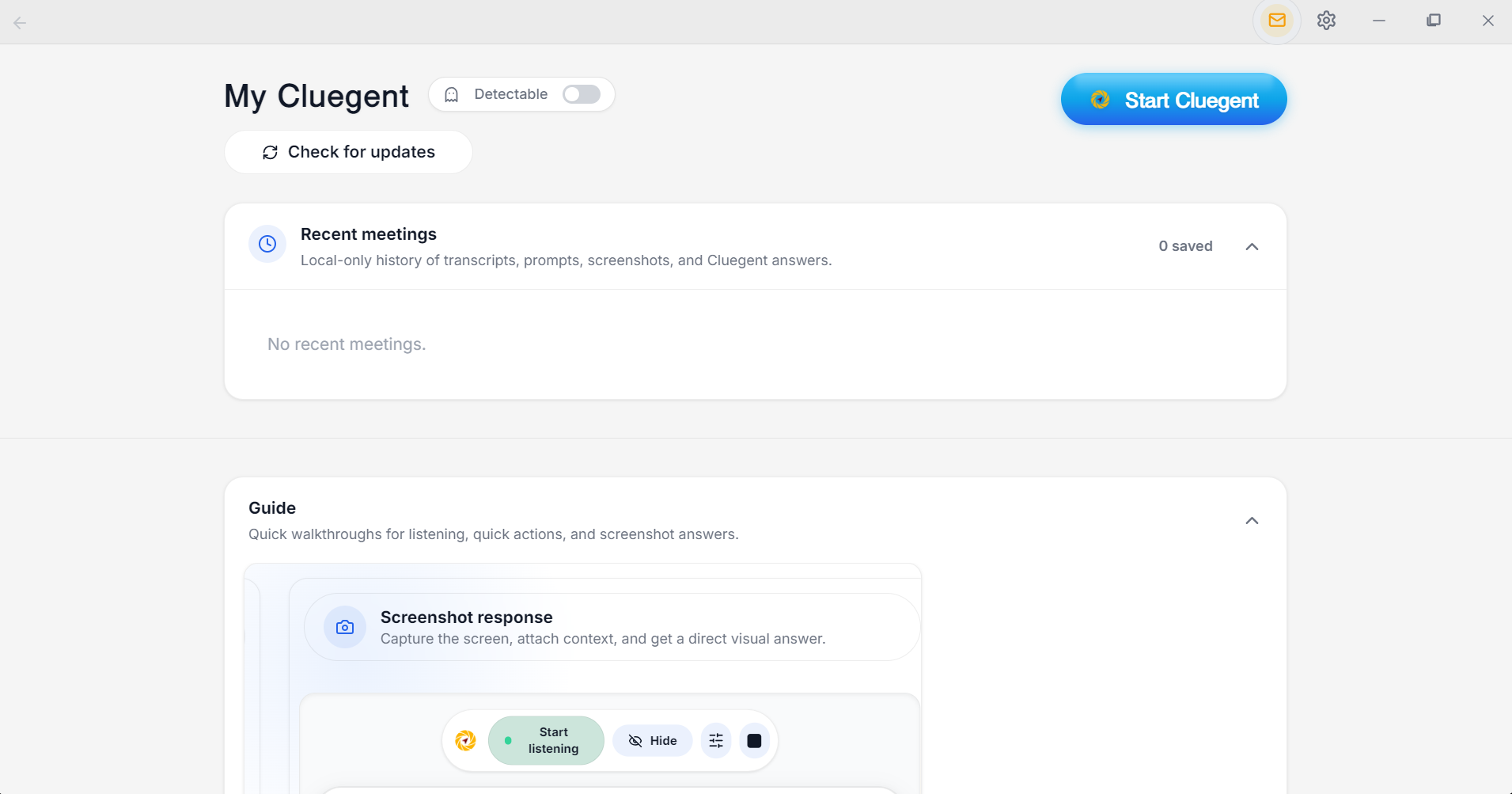
Ask for approach, debugging steps, complexity, and tradeoffs.
Use Ctrl + [ shortcut for screenshots inside the desktop workflow.
Combine screenshot context with typed prompts and quick actions.
Use only where screenshots and AI assistance are permitted.
Why screenshot analysis matters
Coding rounds, system design prompts, browser errors, and live tasks often appear visually. Screenshot context reduces retyping and helps keep answers grounded in the actual screen.
Good prompts after attaching a screenshot
Ask Cluegent to explain the problem, identify the bug, propose an approach, compare tradeoffs, simplify the answer, or prepare a spoken explanation.
Best use cases
Screenshot-aware assistance is useful for permitted coding interviews, debugging rounds, technical meetings, support calls, system diagrams, and visible assessment prompts.
Customize Cluegent for your context
Cluegent is not one fixed answer style. You can tune the assistant around your resume, screen, voice context, and repeated prompts.
Resume context
Add your resume in Settings → Customize so Cluegent can keep your background, projects, skills, and experience in mind while helping with permitted interviews.
Listening responses
Customize how Cluegent answers from live transcript context: concise, detailed, example-first, interviewer-facing, or any style that matches your workflow.
Screen and type responses
Set separate behavior for screenshot-based answers and typed prompt answers, so code screens, visual questions, and direct questions get the right response style.
Quick action buttons
Create quick action buttons for repeated prompts like answer shortly, give an example, explain tradeoffs, brainstorm, or ask the next question.
How Cluegent compares
Clear differences help Google and users understand where Cluegent fits.
Visible code
Screenshot-aware
Manual copy-paste
Errors and stack traces
Attach screen context
Manual typing
Coding explanation
Approach + complexity + tradeoffs
Generic
Workflow speed
Shortcut + answer
Tab switching
Frequently asked questions
What is Cluegent?
Cluegent is a customizable Windows and macOS desktop AI assistant for live interviews, meetings, coding screens, and screen workflows. It listens when you start it, keeps rolling context, and shows private responses on your desktop.
Does Cluegent join my meeting?
No. Cluegent runs as a desktop app and does not join as a meeting participant or install a browser extension into the call.
Which platforms does Cluegent work with?
Cluegent is designed for desktop workflows across Google Meet, Zoom, Microsoft Teams, Slack Huddles, coding editors, browsers, and document windows.
Can I customize how Cluegent answers?
Yes. In Settings, the Customize section lets you add resume context, tune listening responses, screen responses, and typed prompt responses, and manage quick action buttons for common prompts.
Is the private overlay a guarantee against every detection method?
No. Cluegent is designed to stay out of standard screen capture behavior, but users are responsible for following laws, platform rules, workplace policies, school policies, and interview rules.