



Real-time interview context from live audio when listening is enabled.
AI interview assistant
Private AI Interview Assistant for Live Calls
Use Cluegent during permitted live interviews to keep context, structure answers, and handle coding or screen-based questions without switching tabs.
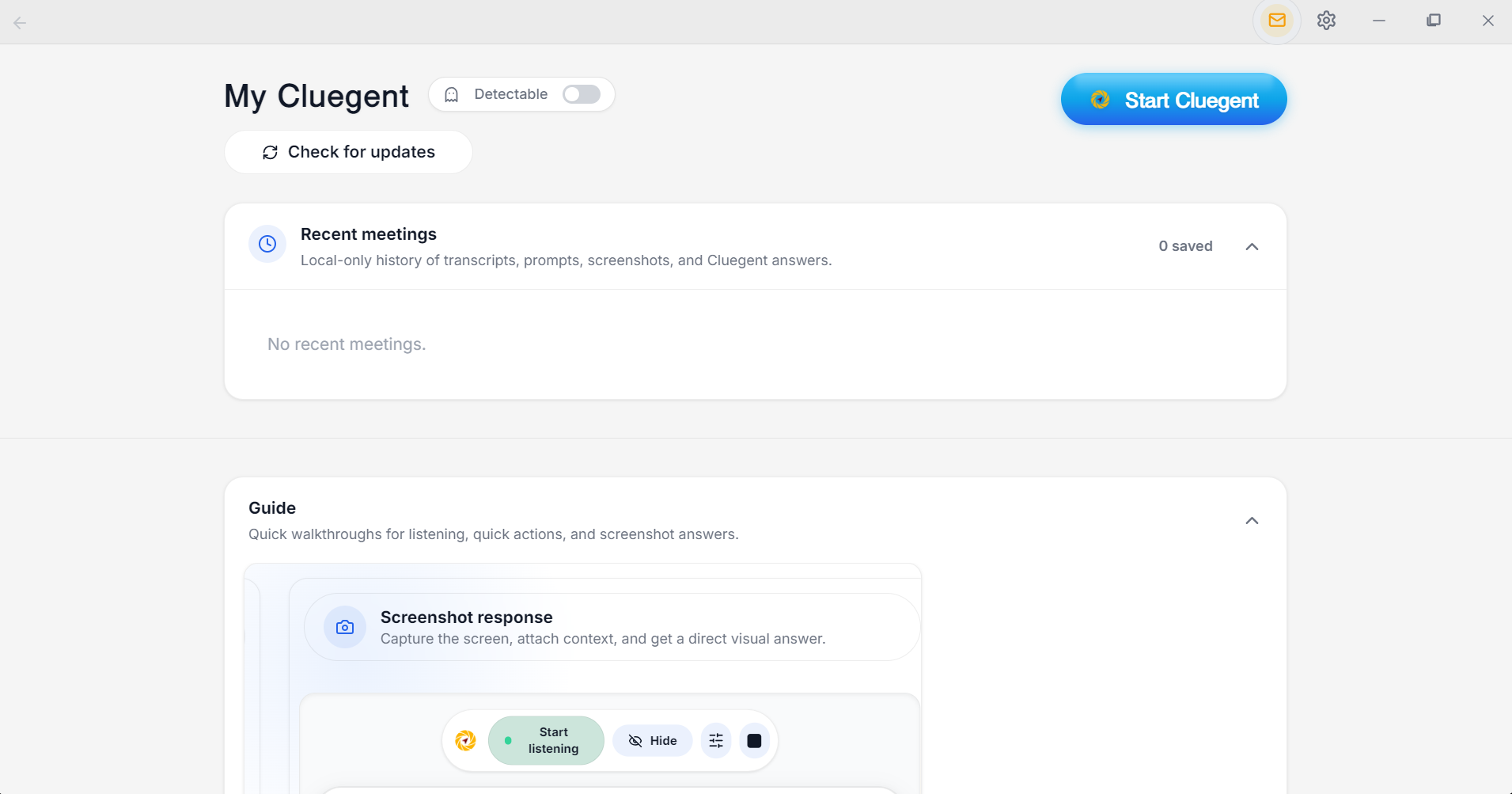
Download Cluegent
Turn this guide into a live desktop AI copilot.
Install Cluegent for permitted interviews, coding rounds, Zoom, Meet, Teams, screenshots, resume-aware answers, and quick actions.
Get for Windows
Used by early Cluegent customers
Checklist before you practice
- Name the employer's need in language that reflects the job description.
- Choose one example with a clear personal contribution.
- Explain the result without inventing metrics.
- Connect your evidence to work you would do in this role.
- Keep the spoken answer under one minute unless asked for more detail.
Typed prompts and quick actions for follow-up questions.
Screenshot-aware responses for coding problems, errors, and visual prompts.
Private desktop overlay designed to stay out of standard screen capture.
Resume context and custom response behavior from Settings.
Built for the moments where preparation gets messy
Interview pressure usually comes from timing: the question is live, the context is moving, and you need a clear answer fast. Cluegent keeps the active transcript, typed prompt, and screenshot context in one desktop assistant so you can respond with structure instead of scrambling.
Interview answers that stay grounded in context
Cluegent can help summarize the question, propose a direct answer, give an example, shorten a response, or explain a tradeoff. You stay in control of when listening starts and when a prompt is submitted.
Customize Cluegent before the interview
In Settings, open Customize to add your resume as context, define how Cluegent should answer listening requests, screen questions, and typed prompts, and create quick action buttons for repeated interview moves.
Use it responsibly
Cluegent should be used only where AI assistance, transcription, screenshotting, and recording are allowed. Always follow the rules of the interview, employer, platform, school, and jurisdiction.
Customize Cluegent for your context
Cluegent is not one fixed answer style. You can tune the assistant around your resume, screen, voice context, and repeated prompts.
Resume context
Add your resume in Settings → Customize so Cluegent can keep your background, projects, skills, and experience in mind while helping with permitted interviews.
Listening responses
Customize how Cluegent answers from live transcript context: concise, detailed, example-first, interviewer-facing, or any style that matches your workflow.
Screen and type responses
Set separate behavior for screenshot-based answers and typed prompt answers, so code screens, visual questions, and direct questions get the right response style.
Quick action buttons
Create quick action buttons for repeated prompts like answer shortly, give an example, explain tradeoffs, brainstorm, or ask the next question.
How Cluegent compares
Clear differences help Google and users understand where Cluegent fits.
Live audio context
Yes, when listening is enabled
Not usually
Screen or code screenshots
Built in
Manual copy-paste
Private desktop workflow
Desktop overlay
Browser tabs
Meeting notes after calls
Local meeting history
Usually separate tools
Frequently asked questions
What is Cluegent?
Cluegent is a customizable Windows and macOS desktop AI assistant for live interviews, meetings, coding screens, and screen workflows. It listens when you start it, keeps rolling context, and shows private responses on your desktop.
Does Cluegent join my meeting?
No. Cluegent runs as a desktop app and does not join as a meeting participant or install a browser extension into the call.
Which platforms does Cluegent work with?
Cluegent is designed for desktop workflows across Google Meet, Zoom, Microsoft Teams, Slack Huddles, coding editors, browsers, and document windows.
Can I customize how Cluegent answers?
Yes. In Settings, the Customize section lets you add resume context, tune listening responses, screen responses, and typed prompt responses, and manage quick action buttons for common prompts.
Is the private overlay a guarantee against every detection method?
No. Cluegent is designed to stay out of standard screen capture behavior, but users are responsible for following laws, platform rules, workplace policies, school policies, and interview rules.